Yes. TunePocket’s free 8D Audio Converter lets you create, preview, and download 8D audio directly in your browser, with no software installation or registration required.
We built it with sound quality in mind. Adjustable rotation speed, spatial intensity, reverb, and a centered bass option help you balance immersive movement with musical clarity. You can compare the original and processed audio before exporting your MP3.
The final sound quality depends on your source recording, effect settings, and export encoding. Below, we explain the controls and how to get the best results.
Key takeaway
Good 8D audio starts with a clean recording and carefully balanced effects. TunePocket 8D Converter gives you control over rotation speed, spatial intensity, reverb, and bass positioning so you can create movement without overwhelming the original music.
What is 8D audio?
8D audio is a spatial effect that makes sound seem to move around your head when you listen through headphones. Despite the name, it does not mean the recording has eight dimensions or eight audio channels.
The appeal is the sense of movement. A familiar song can feel more spacious and immersive as the sound changes position around the listener.
What makes a high quality 8D audio conversion?
A strong effect is not always a better effect. Fast rotation and heavy reverb can distract from vocals, blur musical details, or make a track tiring to hear. A good conversion balances movement with clarity.
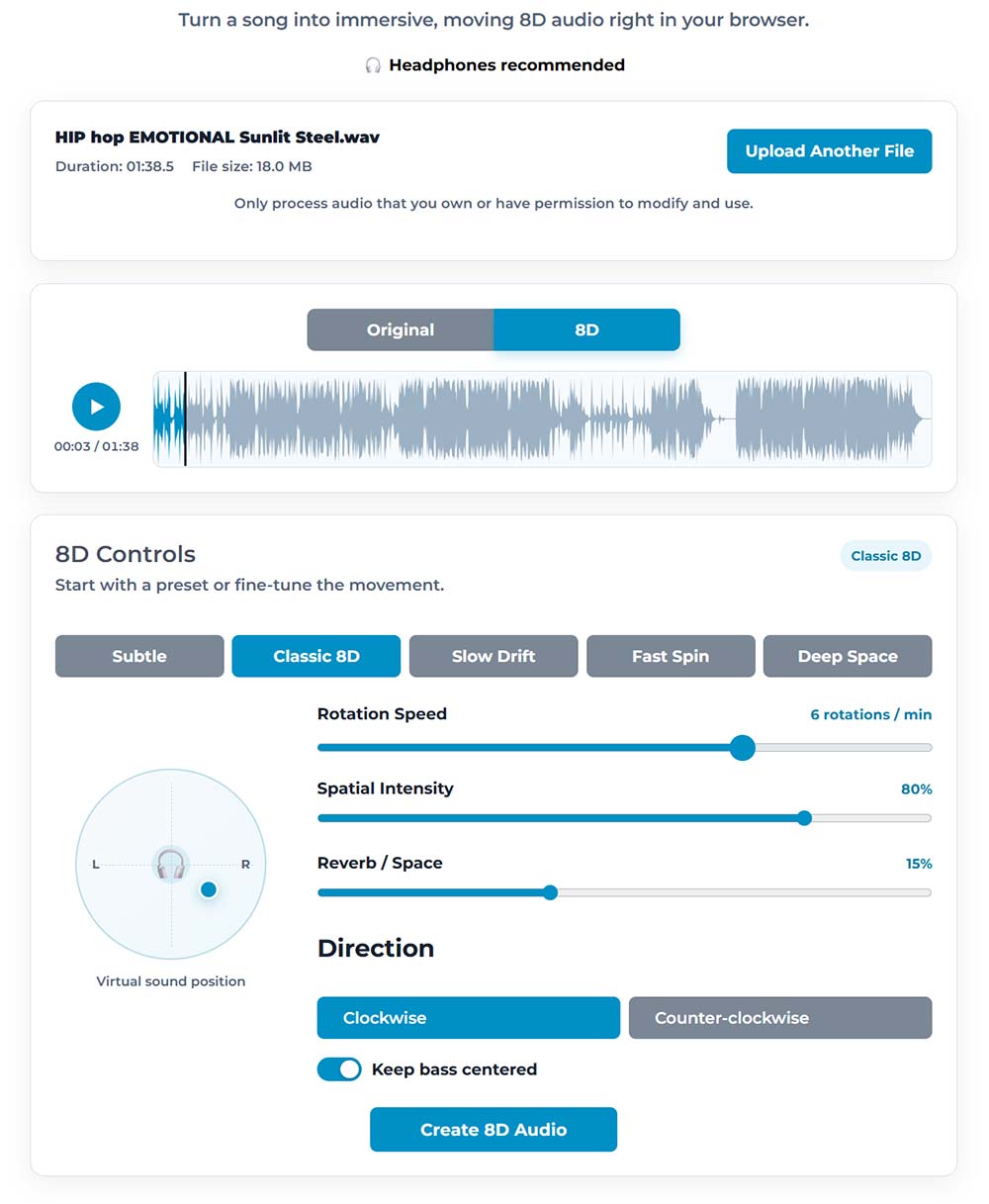
Our converter includes several controls to help you find that balance:
-
1. Adjustable rotation speed.
Choose how quickly the sound moves around the listener. Try slower movement for relaxation music and faster rotation for a more noticeable effect.
-
2. Spatial intensity control.
Adjust how pronounced the spatial effect feels. Lower the intensity if the movement pulls too much attention away from the music.
-
3. Reverb and space settings.
Add a sense of space while keeping the amount of reverb appropriate for your recording. Tracks that already contain plenty of reverb generally need a lighter touch.
-
4. An option to keep bass centered.
Keep the low end anchored while applying movement to the rest of the sound. This is useful when you want an immersive effect with a steady bass foundation.
-
5. Original and 8D playback comparison.
Switch between the original recording and the processed preview to judge whether your settings improve the listening experience.
Example of 8D converted music
Here’s a quick example of quality output produced by TunePocket 8D Music Converter. You can compare before and after by listening to the sound samples below:
How to get the best sounding result
Start with the best source recording available. An 8D converter adds a spatial effect; it cannot restore detail missing from a heavily compressed or distorted file.
Make small adjustments and compare them with the original. For gentle background listening, try Slow Drift or Subtle first. For a more obvious rotating effect, start with Classic 8D.
Listen to both a quiet passage and the busiest part of your track before exporting. Settings that work well during an intro can sound excessive when the full arrangement comes in.
Don’t want to spend time converting? Download ready to use 8D music and sounds. Ready to use in videos, podcasts, and more.

Frequently asked questions
Can I convert music to 8D and download it for free?
Yes. TunePocket’s free 8D Audio Converter lets you select an audio file, customize the effect, preview the result, and download your converted music. No account or software installation is required.
Will converting a song to 8D reduce its sound quality?
8D conversion changes the original sound, and excessive effects can reduce clarity. TunePocket’s 8D Audio Converter helps you balance the effect with adjustable spatial intensity, reverb, and an option to keep bass centered. Start with a high quality recording and use the Original and 8D playback comparison to check your settings before downloading.
Do I need special headphones for 8D audio?
No. Regular stereo headphones or earbuds can reproduce the 8D effect. You do not need special surround sound headphones. TunePocket’s 8D Audio Converter lets you preview the effect through your own headphones before creating the file. Listen with both earpieces to hear the movement between the left and right channels.
What format can I download my converted audio in?
TunePocket’s free 8D Audio Converter exports your finished audio as a high quality MP3 file (192 Kbps for free users, registered clients can download full quality WAV files), compatible with most phones, computers, audio players, and video editing software. The spatial effect is included in the download, so you can enjoy your converted audio without a special player or additional plugin.
What software tools are available for producing 8D audio tracks?
You can produce 8D audio with desktop audio editors that support automated panning and reverb, or use an online 8D converter. For a free, practical solution, we recommend TunePocket’s 8D Audio Converter. It works directly in your browser with no software installation or registration required. Choose a preset, adjust rotation speed and spatial effects, preview the result through headphones, and download your finished track as an MP3.
Why does my 8D audio sound like it only moves left and right?
Left-to-right movement is a central part of the 8D effect. The impression of sound moving in front of or behind you varies with the recording, settings, headphones, and listener. TunePocket’s 8D Audio Converter gives you spatial intensity and reverb controls to experiment with that sense of space. Try the Classic 8D or Deep Space preset and adjust from there. If you hear no movement at all, check that both earpieces work and that your device’s mono audio setting is turned off.
Download 14,000+ Royalty Free Music Tracks And Sound FX
Unlimited download | Lifetime license | Commercial use